Help companion
MyPracticeHelper Video Sessions Guide
Therapist and client steps, what each screen shows, and what happens after the call
Built-in video sessions run in the browser with private join links. This guide explains how therapists set up and run a call, how clients join, what each part of the screen is for, and where recordings and chat go when the session ends.
What video sessions are
A video session is a private room inside MyPracticeHelper. Clients open a join link in their browser. They do not need a separate video app. You can start from the calendar (venue Video Call) or from Online Sessions.
- Solo: one client join link.
- Couple: two separate join links (one per person). Video rooms support at most two client join codes.
- Calendar appointments can list one primary client plus up to two more (three people on the booking). Video still only issues up to two join links.
- Waiting room, in-call chat, and consent-based audio recording are built in.
- Screen sharing is not available in this product.
Always follow privacy and consent rules that apply where you practise. Recording only starts after the client agrees in the app.
Before you start
A few checks make the first call smoother for you and your client.
- Use a current Chrome or Edge browser when you can (best camera and mic support).
- Allow camera and microphone when the browser asks.
- Open Settings → General: turn on Auto-email video join details if you want clients to get the link by email when a session is created.
- Under Client booking button, choose Your Calendly link or Your Cal.com link so clients can rebook after a call (if you use those booking pages).
- Put your Practice logo and name in Settings so the join experience looks like your Practice.
Therapist: create a session from the calendar
- Open Calendar and create or edit an appointment.
- Set Venue to Video Call. The client needs an email on file so join details can be sent when email is enabled.
- Save the appointment.
- Use Create video session on the appointment (or Open video session if one already exists). You are taken to Online Sessions to copy links and enter the room.
- Copy each join link (or rely on the automatic email if Auto-email video join details is on).
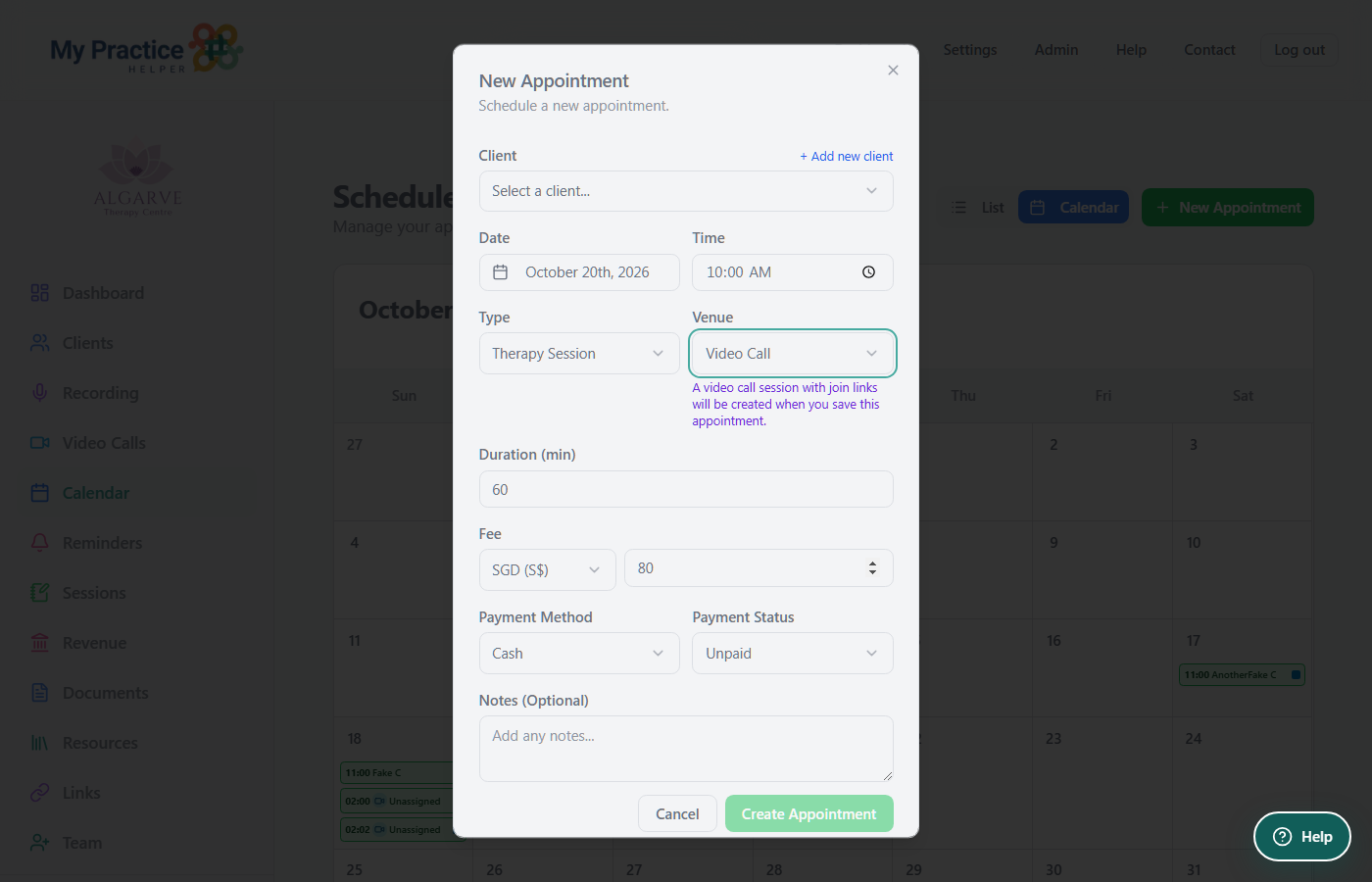
Screenshot: New Appointment with Venue set to Video Call. The note explains join links are created when you save.
Labels on this screen: Venue: Video Call · Create video session · Open video session · Client email required for confirmations
Therapist: create a session from Online Sessions
- Open Online Sessions in the side menu.
- Choose New online session.
- Pick Solo or Couple, link a client if asked, then Create.
- Use Copy link for each participant. Regenerate link if a code must be replaced (each code is one-time).
- When you are ready, click Enter room.
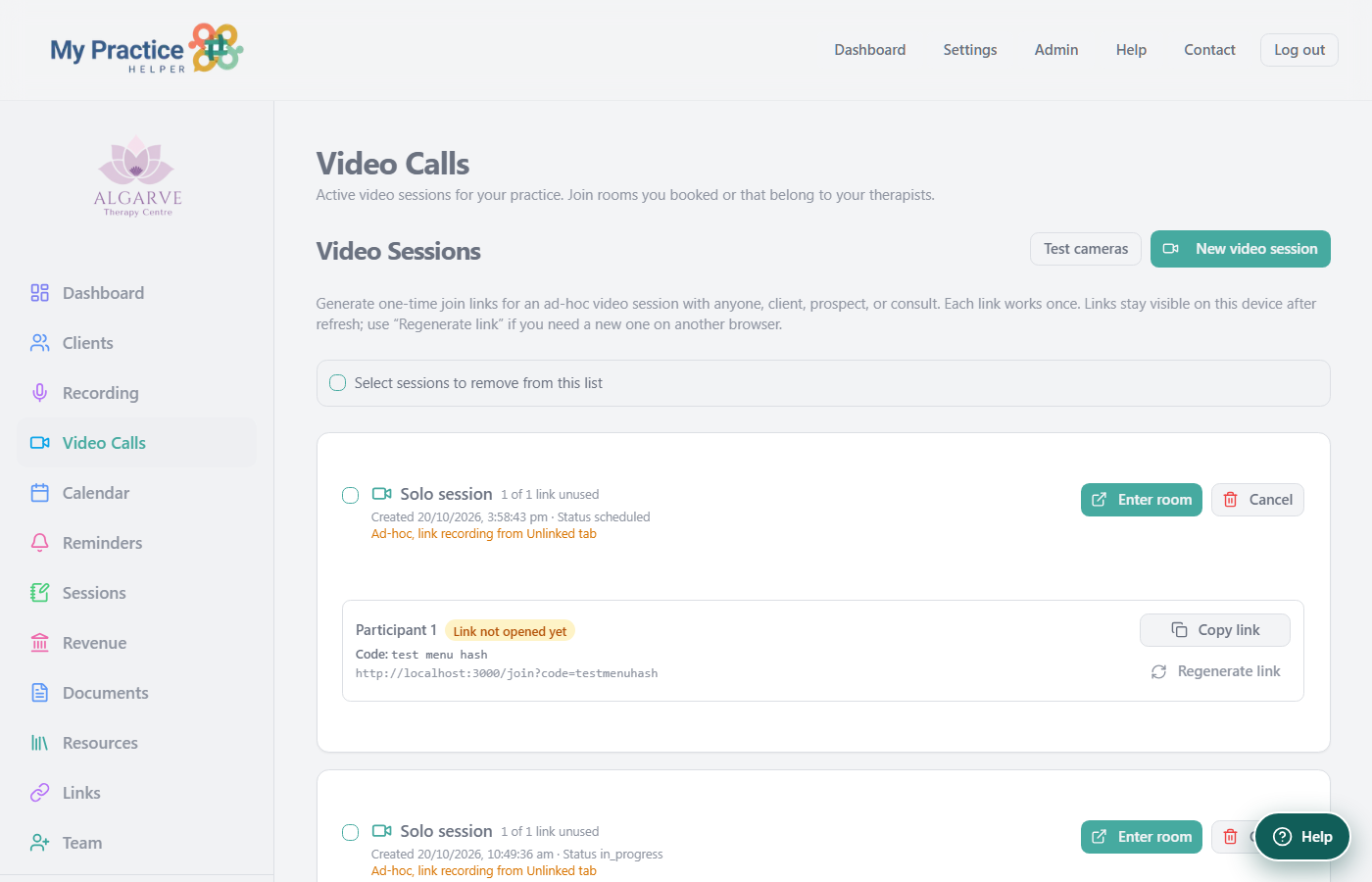
Screenshot: Online Sessions with Solo session cards, Copy link, Regenerate link, Enter room, and Cancel.
Labels on this screen: New online session · Solo / Couple · Copy link · Regenerate link · Enter room · Recent sessions (last 30 days)
If auto-email is on and the client has an email, you may see a short notice that join-details email was sent. If email is missing or auto-email is off, copy the link yourself.
Client: how they join
- They open the join link from your email or from the link you sent (or go to the join page and enter the three-word session code).
- They enter Their name if asked.
- They tap Join video session.
- If the waiting room is on, they land in the waiting room until you admit them. If waiting room is off, they go straight into the room.
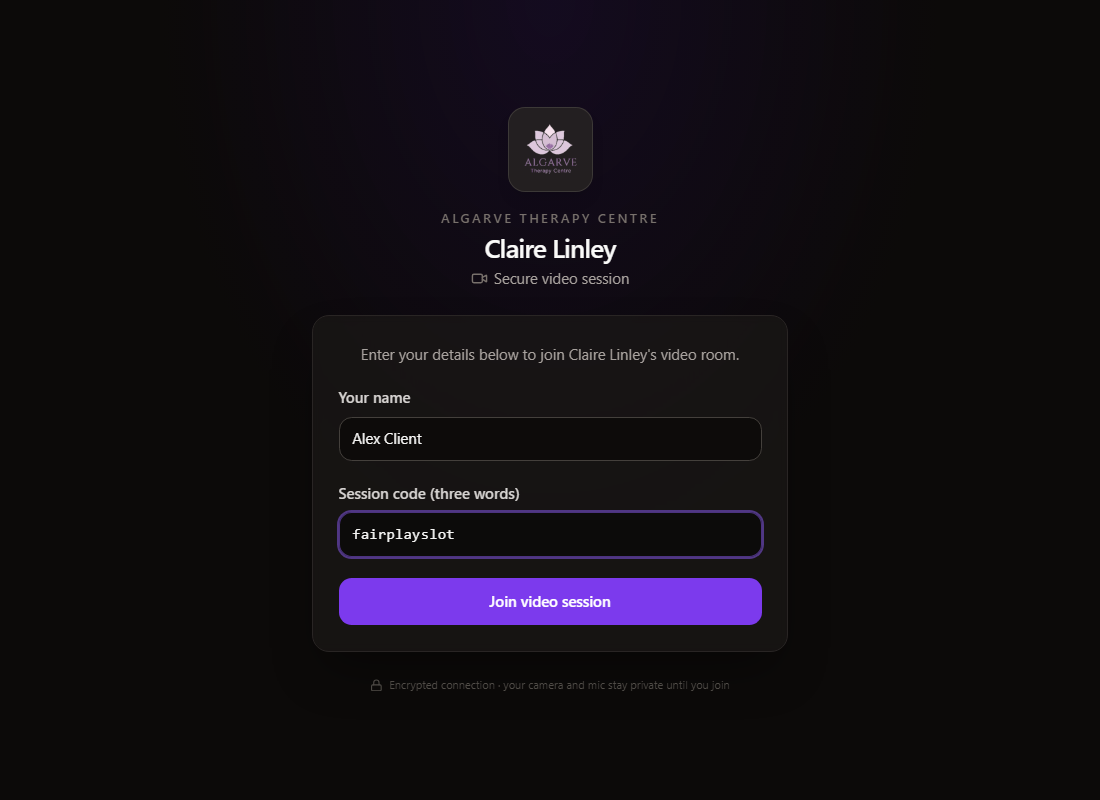
Screenshot: client join screen with Your name, Session code, and Join video session.
Labels on this screen: Your name · Session code (three words) · Join video session · Encrypted connection
Waiting room (client)
While they wait, the client sees status and can prepare camera and mic. You admit them when you are ready.
- Headlines: You're early (before the start time) or Waiting for therapist to start session.
- Status chips: Waiting, Admitted, Left, or Removed.
- Countdown: Session starts in … when they arrive early.
- Turn on background music / Turn off background music (optional hold music).
- Turn on camera preview / Turn off camera preview, and Test microphone / Stop microphone test.
- Copy on preview: Your therapist can see this preview while you wait.
- When status becomes Admitted, they move into the live room automatically.
- If removed or the session ends, they return to the join page.

Screenshot: client waiting room with camera preview controls and background music while waiting to be admitted.
Labels on this screen: You're early / Waiting for therapist… · Waiting · Session starts in … · Turn on camera preview · Test microphone · Turn on background music
Waiting room (therapist)
In the room, open Workspace if needed. The Waiting room panel lists people waiting.
- Empty state: No clients waiting… Live camera previews appear beside each name when a client has their camera on.
- Per guest: preview, Joined time, Waiting, Camera on when applicable.
- Admit: lets that person into the live room.
- Admit all: when more than one person is waiting.
- Remove (icon): Remove from waiting room, they can rejoin with their link. There is no separate Deny button label.
- Departed list can show Left with a time.
- If auto-admit at start time is on, new arrivals after the start can be admitted automatically (you may see a short note about this).

Screenshot: Session workspace with Waiting room, guest name, Admit, session notes, and Session Chat.
Labels on this screen: Workspace · Waiting room · Admit · Admit all · Joined … · Waiting · Camera on
During the call: controls for everyone
Once in the room, both therapist and client use the toolbar at the bottom (layout may wrap on small screens).
- Mute microphone / Unmute microphone.
- Turn camera off / Turn camera on.
- Switch camera or Choose camera… when more than one camera is available.
- Show self view / Hide self view (self picture-in-picture). When views are swapped: Show client preview / Hide client preview.
- Swap who is on the main screen: Show your camera on main screen, Show therapist on main screen, or Show client on main screen (wording depends on role and layout).
- Leave ends your participation. After a client has joined, the therapist sees End / End Call to finish the session for everyone.

Screenshot: in-call view with self preview and toolbar (mic, camera, layout, record, Leave).
Labels on this screen: Mute microphone · Turn camera off · Show self view · Chat · Record (therapist) · Leave / End Call
There is no screen share control in this product. Picture-in-picture here means the in-app floating video tile, not a separate browser pop-out feature.
During the call: therapist workspace
- Workspace: open session notes, waiting room, join links, and chat on larger screens; use the Workspace control on smaller screens.
- Layouts when more than one remote person is present: Pinned, Speaker, or Gallery.
- Empty stage messages can include Waiting for the other person or The client has left the session.
- Record: starts a consent request (see next section). You may see Waiting for recording consent…, then Recording when active, or Recording consent declined.
- Stop recording / Cancel request appear while a request or recording is in progress.
- Session time card shows elapsed call time (Paused until a client is in the call), the current clock time, and when the session was opened.
- Help (circle icon) next to Workspace opens the Video Sessions Guide in a new tab.
60 and 90 minute reminders (therapist only)
While a client is in the live call, the elapsed timer runs in your Session workspace. At set times you get a private reminder so you can pace the session. Clients never hear the sound and never see the on-screen alert.
- At 60 minutes of live call time: a soft chime plays once on your device only, and a 60 minute reminder pill appears at the top of the video room.
- At 90 minutes: the same chime plays once again, with a 90 minute reminder pill.
- The on-screen reminder stays for about five seconds and is shown at half opacity so it stays unobtrusive.
- The timer is paused while you are waiting for the client; reminders only fire from live call elapsed time after they have joined the room.
These reminders are for the therapist only. They are not sent into the call audio and do not appear on the client’s screen.
Session Chat
- Open Chat from the toolbar (clients) or from Workspace (therapists).
- Title: Session Chat. Type in Type a message…
- Load earlier messages if the history is long.
- Presence can show Active Now, Away, or Waiting to join.
- When the session ends, chat can be saved with the session for download and notes.

Screenshot: Session workspace including Session Chat and Type a message…
Labels on this screen: Session Chat · Type a message… · Load earlier messages
Recording with client consent
- Therapist taps Record. The client sees Recording request.
- The dialog explains you want to record for clinical notes, that it includes audio from the call, and that only the therapist can access it.
- Client chooses I agree or I do not agree.
- If they agree, recording can proceed (audio from the call). If they decline, recording does not continue.
- Therapist uses Stop recording when finished.
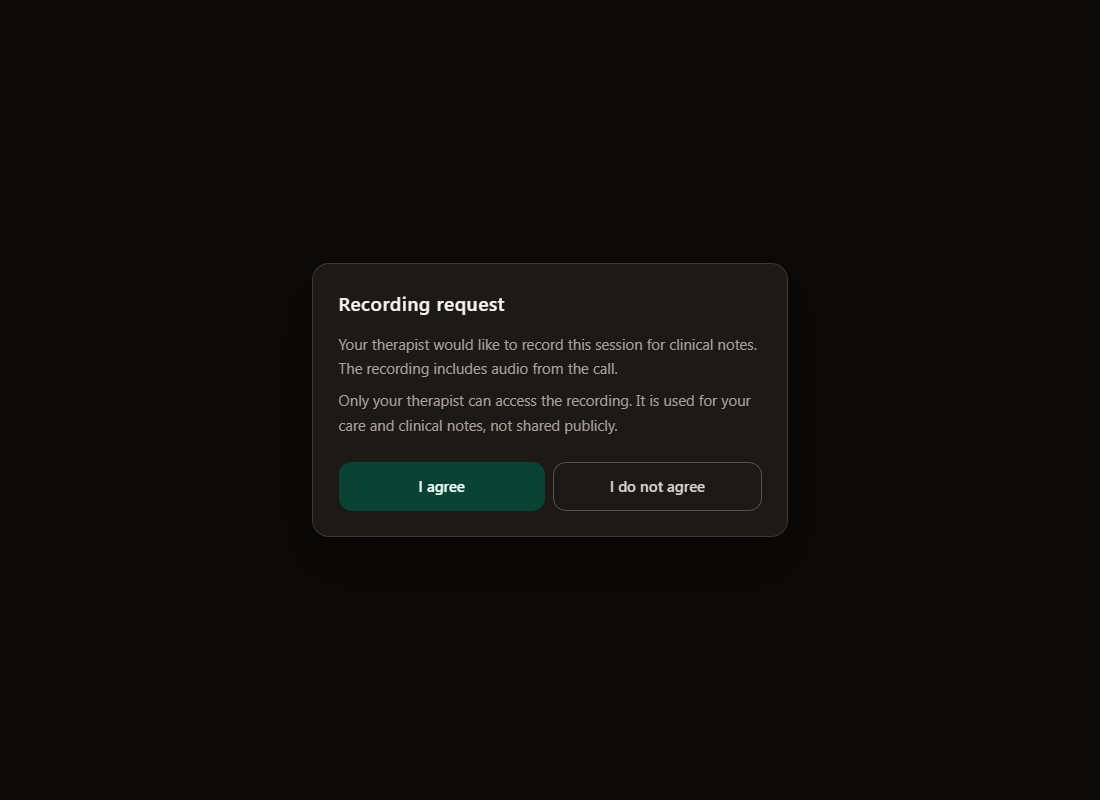
Screenshot: Recording request dialog with I agree and I do not agree.
Labels on this screen: Recording request · I agree · I do not agree
Recording is for your clinical workflow. Uploaded audio may be transcribed later in Session Audio; if a transcript fails, use Retry transcription there.
Solo and couple sessions
- Solo session: one Copy link for the client.
- Couple session: two links, one per person. Each person uses their own link and code.
- On the calendar you can add up to two additional participants (three clients on the shared booking). Creating video for that booking still prepares at most two join codes.
- With more than one remote participant, Gallery layout is available so you can see everyone.
Ending the call
Therapist path:
- Click End Call (or Leave before a client has joined).
- Session ended appears. Choose Back to Online Sessions.
- You land on Online Sessions. Call duration can be noted on the session.
Client path:
- Click Leave, or the session ends when you end it.
- They see You've left the session or Your session has ended, then Continue.
- They go to Session downloads for that session.
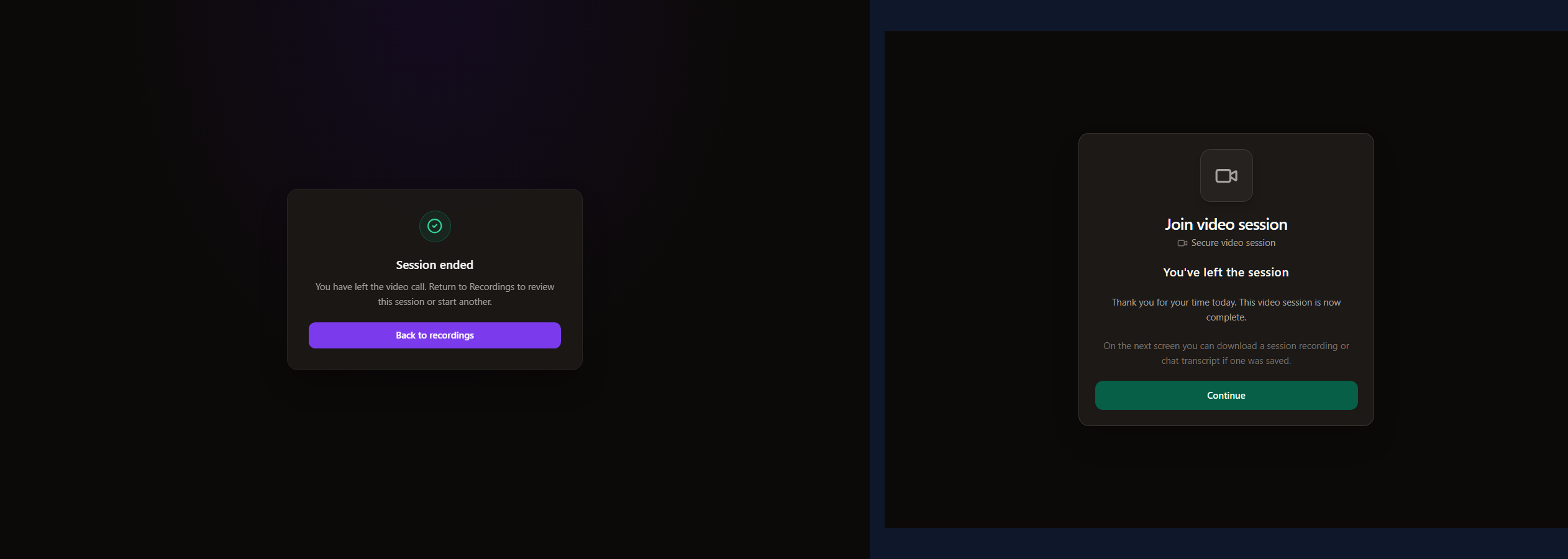
Screenshot: therapist Session ended (Back to Online Sessions) and client You've left the session (Continue).
Labels on this screen: Session ended · Back to Online Sessions · You've left the session · Continue
After the call (therapist)
- Open Online Sessions for recent sessions (last 30 days on the list).
- Audio from a consented recording appears with other recordings (allocated to the client when linked, or Unallocated if not).
- Chat from the room can be stored with the session and used with notes.
- Workspace session notes you typed during the call stay with that video session; link them to the calendar appointment when the session was created from Video Call.
- Use Retry transcription if a transcript did not finish.
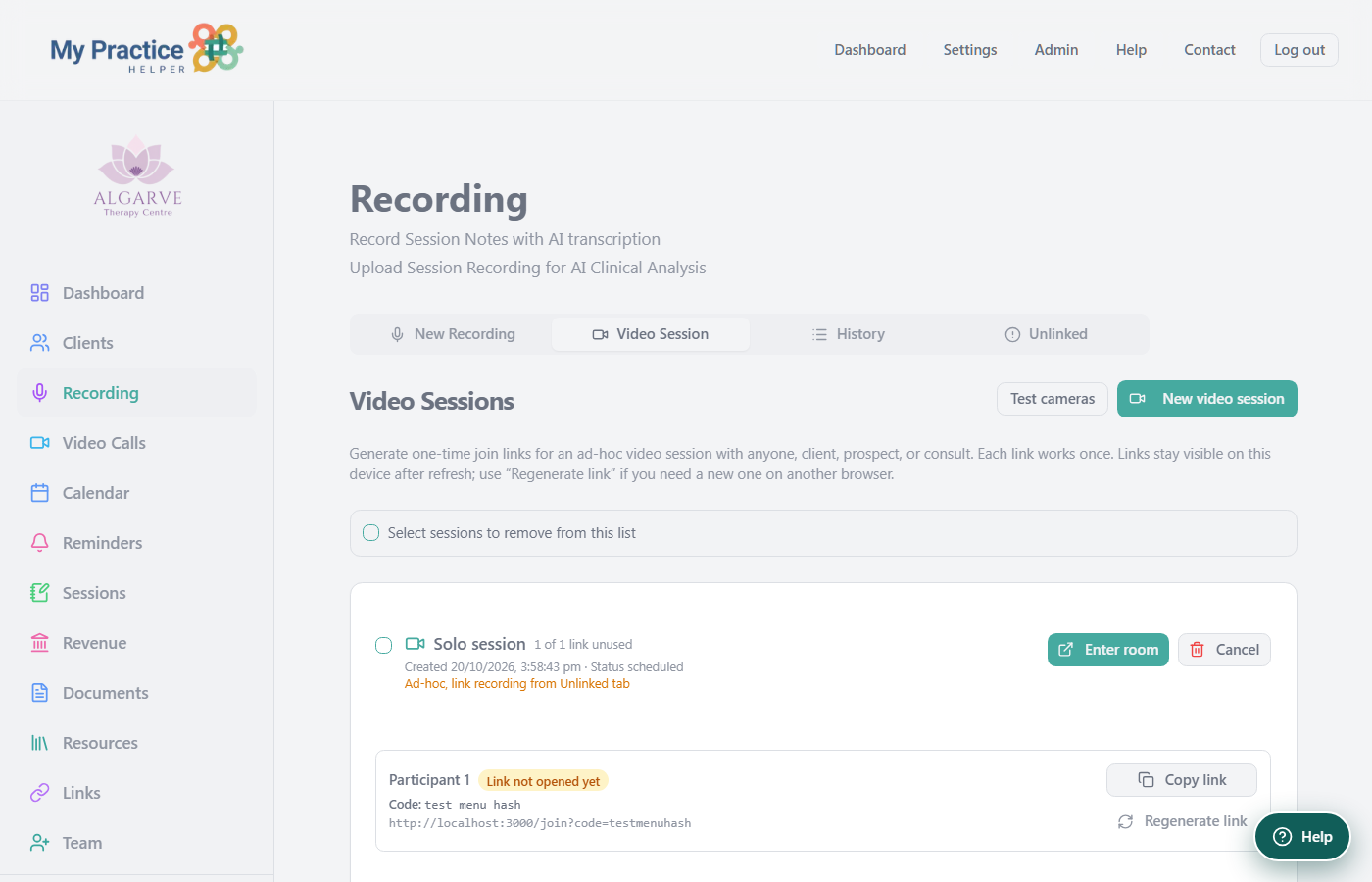
Screenshot: Online Sessions list with active sessions, Enter room, Copy link, and recent ended sessions.
Labels on this screen: Video Session · New online session · Enter room · Copy link · Recent sessions (last 30 days)
After the call (client)
- Session downloads can include the audio recording(s) when one was saved.
- Download chat when a chat transcript was saved.
- Book an Appointment opens the Calendly or Cal.com link you chose under Settings → Client booking button.
- If nothing was saved: No recording or chat transcript was saved…

Screenshot: after the call the client sees Session complete. If a recording or chat was saved, download options appear here (and Book an Appointment when you set a booking link).
Labels on this screen: Session complete · No recording or chat transcript is ready yet · Session downloads · Book an Appointment
Settings that affect video
- Auto-email video join details: emails the join link and session code when a video session is created (calendar, booking integration, or Online Sessions), if the client has an email.
- Client booking button: Your Calendly link or Your Cal.com link for the post-session Book an Appointment button.
- Practice name and logo: shown in the branded join experience where applicable.
Quick checklists
Therapist checklist
- Book Video Call or create New online session.
- Confirm join link copied or emailed.
- Enter room a few minutes early; check Waiting room.
- Admit the client (or Admit all).
- Use mic, camera, chat, and Record only with consent.
- Watch for the private 60 and 90 minute chime and on-screen reminder (clients do not hear or see these).
- End Call, then Back to Online Sessions, then confirm audio and notes.
Client checklist
- Open the join link (Chrome or Edge recommended).
- Allow camera and microphone.
- Join video session; wait if the waiting room appears.
- Use Turn on camera preview and Test microphone while waiting if you want.
- In the call: mute/camera as needed; answer Recording request if it appears.
- After Leave: Continue to Session downloads if you want the audio, chat, or to book again.
If something goes wrong
- No camera or mic: check the browser permission icon in the address bar, then reload.
- Client stuck on Waiting: confirm you clicked Admit (or Admit all), and that their status is not Removed.
- Link already used: codes are one-time. Use Regenerate link and send the new one.
- No email sent: check Auto-email video join details, and that the client has an email on file.
- No recording: recording needs I agree from the client, and you must Stop recording before leaving if you want the file saved.
- Wrong booking button after the call: set Client booking button under Settings → General.